Managing transactions can be a hassle, especially when you’re juggling multiple clients or customers. A well-designed payment slip can simplify this process, and utilizing a Business Printable Payment Slip With Logo Space is a practical solution. This resource not only helps you keep track of payments but also reinforces your brand with a personalized touch. Let’s explore how to effectively download, print, and use this valuable tool.
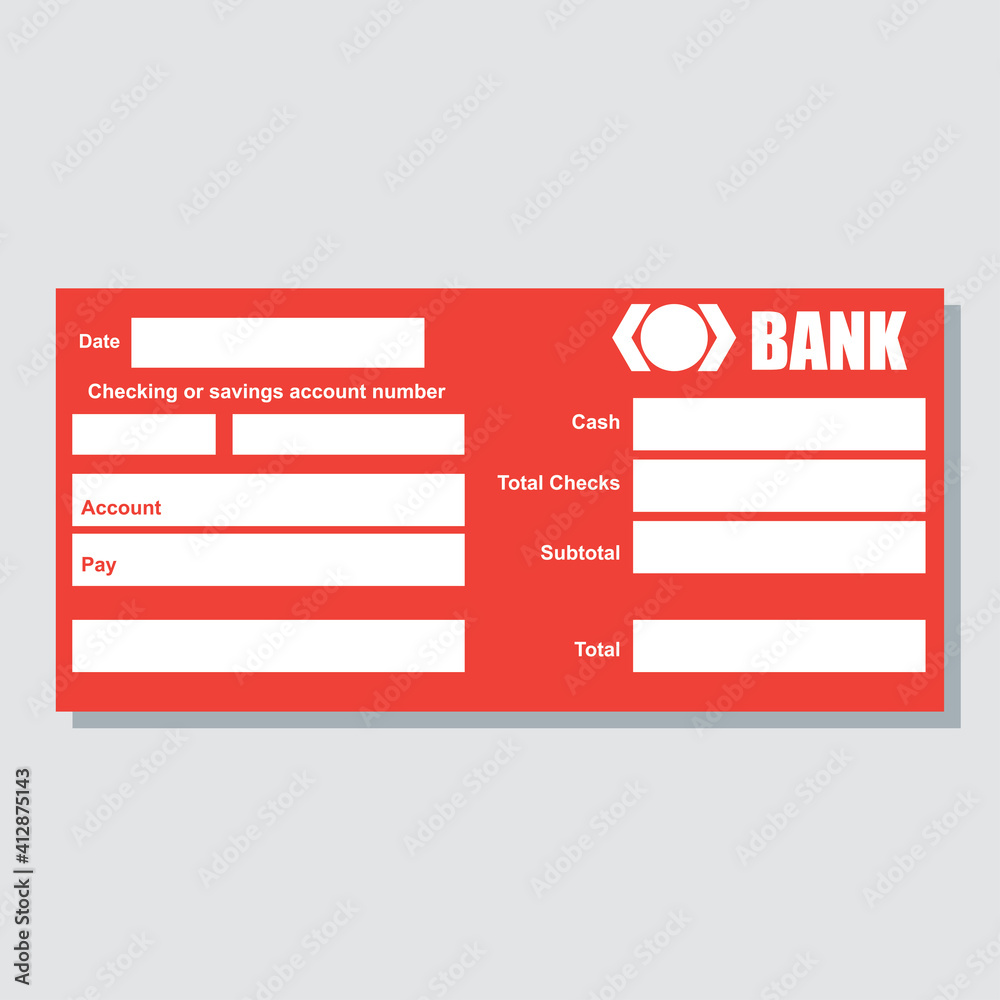
Choosing the Right Payment Slip Template
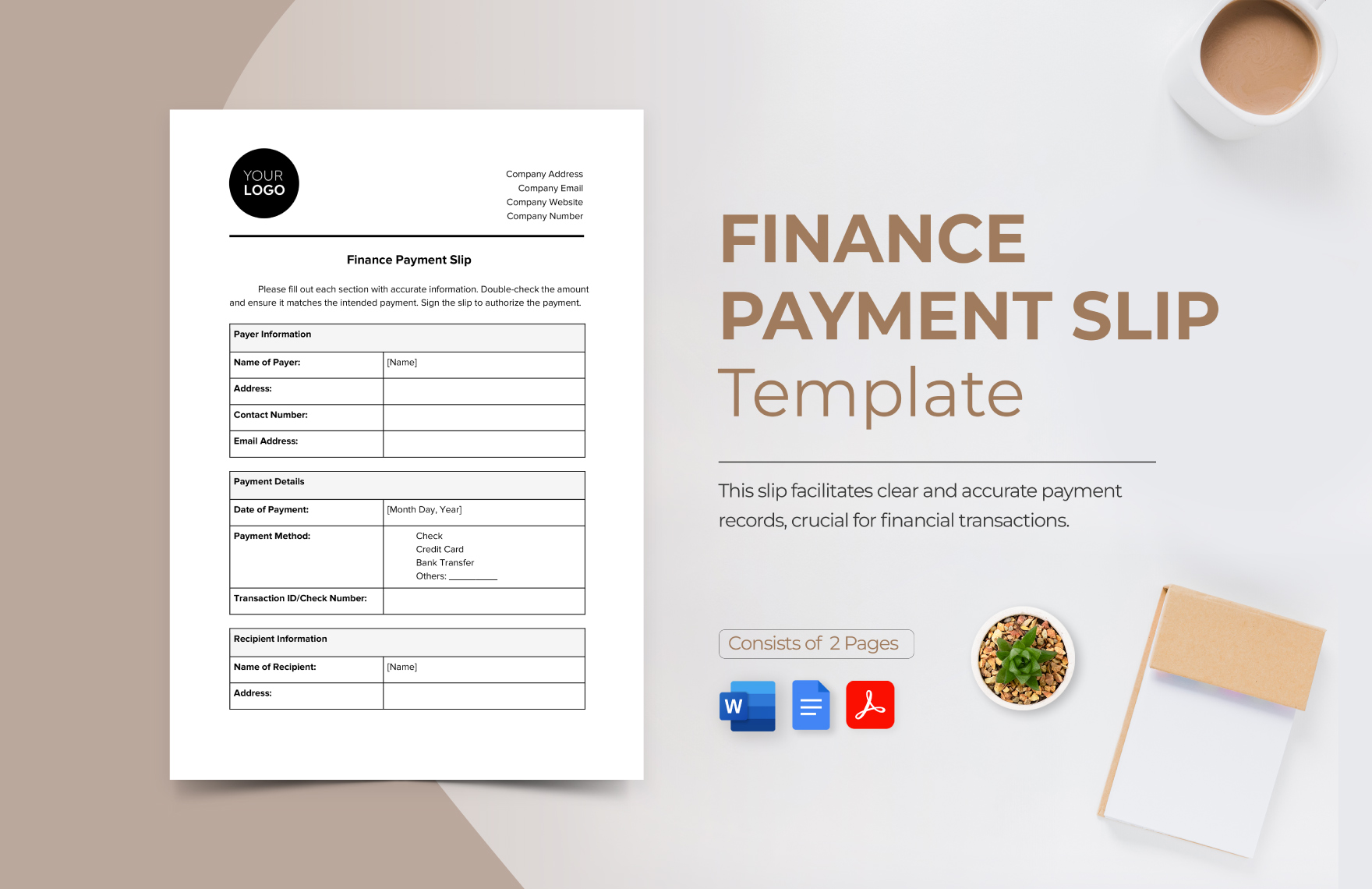
When selecting a printable payment slip, look for one that meets your specific needs. A good template will have space for your business logo, payment details, and customer information. Prioritize clarity and professional design to ensure your slip conveys trustworthiness.
You can find various formats available for download, such as PDF or Word files. PDFs are often preferred for their compatibility across devices, ensuring that your formatting remains intact. Additionally, selecting a template with a clean layout will make it easier for your clients to understand their payment details.
Downloading Your Payment Slip
Once you’ve chosen a suitable template, the next step is to download it. Make sure to save it in a location on your computer that you can easily access later. If you’re using a template in PDF format, you’ll typically have a straightforward download and save process. For Word files, you may want to customize the document before printing.
Remember to check the file size and ensure that your printer settings are compatible with the document format. Most home printers handle standard letter size (8.5” x 11”) well, but if your template requires a different size, adjust your settings accordingly.
Printing Your Payment Slip
Printing should be the next step in your workflow. Here are some tips to ensure you get the best results:
- Use Quality Paper: Opt for a heavier paper stock if you want your payment slips to look more professional. Cardstock is a great choice.
- Adjust Print Settings: Make sure your printer is set to the correct paper size and quality. A portrait layout is typically standard for payment slips.
- Test Print: Before printing in bulk, do a test print to check for any formatting issues. This step helps you avoid wasting paper and ink.
If you’re planning to distribute these slips regularly, consider creating a small stack for easy access.
Customizing the Payment Slip With Your Logo
Adding your logo is crucial for branding. It provides a professional appearance and makes your payment slip instantly recognizable. Here’s how to do it effectively:
- Edit the Template: Open your downloaded file in the appropriate software. For Word documents, you can easily insert your logo by going to the “Insert” tab and selecting “Pictures.”
- Position Your Logo: Make sure the logo is prominently displayed but doesn’t overpower the payment information. A good rule of thumb is to place it at the top or in a corner of the slip.
- Save Changes: Once your logo is in place, save the document. If you’re using a PDF, you may need specific software to edit and save changes.
By personalizing your payment slips, you create a professional image that can enhance client trust and recognition.
Using the Payment Slip Effectively
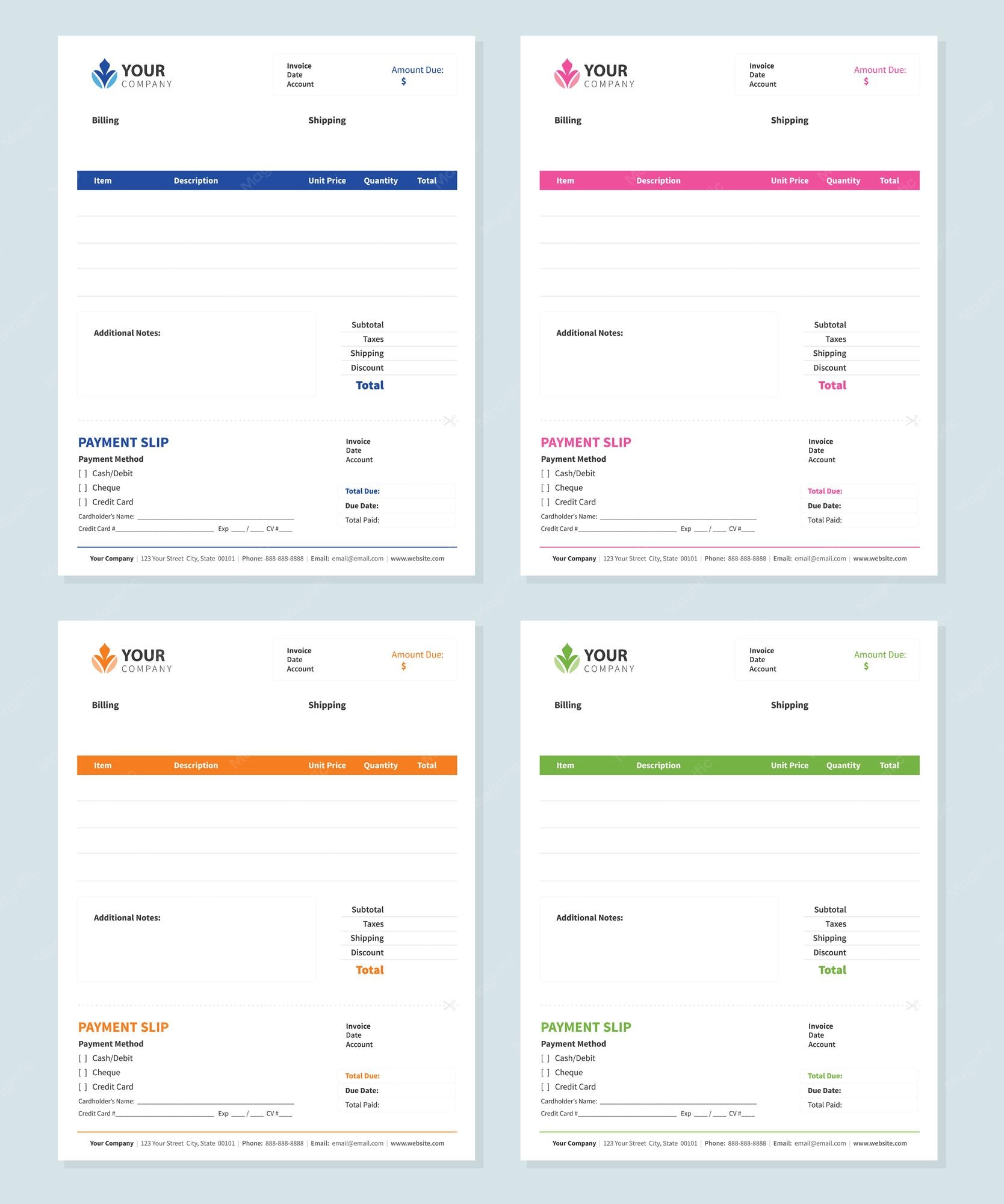
Now that you have your Business Printable Payment Slip With Logo Space ready, it’s time to put it to use. When issuing a payment slip, include all necessary details, such as:
- Date of Payment: Always date your slips to keep records accurate.
- Payment Amount: Clearly state the amount being paid.
- Client Information: Include the customer’s name and contact details.
- Payment Method: Specify whether the payment was made by cash, check, or credit.
After filling out the slip, hand it directly to the customer or include it with a mailed invoice. Keeping a copy for your records can help you track payments and resolve any potential disputes.
This simple resource can significantly streamline your transaction process, helping you stay organized and professional.
For immediate action, consider designing a few payment slips today and keep them handy for your next transaction. You’ll appreciate the ease they bring to managing payments!